



Finding a particular message can be difficult if you get a lot of emails. If you want to check on the status of a package, scrolling through newsletters and random ads can be irksome. Luckily, Apple introduced Categories for the mail app when the tech company released iOS 18.2 in 2025.

“The Mail app automatically sorts your email messages into categories to help you find and manage messages more quickly,” Apple wrote online.
Categories are on by default, but if you don’t like how it works in Mail, no worries. Apple gives you a few options to either ignore Categories or revert your app to look like it did before the iOS 18.2 update.
Here’s what you need to know about Mail Categories and how to turn the feature off so your app looks like it did before the update.
How Mail Categories work
Mail Categories are similar to categories you would find in other email services, like Gmail. The app filters your emails into one of four categories: Primary, Transactions, Updates and Promotions.
Emails with receipts, as well as order and delivery information, fill the Transactions category, and news, social and other subscription emails go to Updates. Emails with special offers and deals go to Promotions, as you might imagine.

The Primary category is more difficult to pin down. Apple says in the app that Primary is for “Messages that matter most.” I’ve used the redesigned app since it launched in beta, and during that time my Primary category was filled with emails from my wife, customer service and even refund information. It’s a little bit of a catch-all category.
How to change an email’s category
Categories aren’t perfect so sometimes an email lands where it probably shouldn’t, like an ad in the Transactions category instead of the Promotions. There is a way to change an email’s category for any future messages you might receive from that sender. Here’s how.
1. Tap Mail.
2. Tap the Transactions, Updates or Promotions tab then tap a message.
3. Tap the three dots (…) in the top right corner.
4. Tap Categorize Sender.

Then you can manually categorize messages from a given sender to another category. You can also recategorize an email from Promotions to Deals and then back to Promotions. The only emails that can’t be recategorized are those in Primary — which can be annoying.
Once, I ordered tickets for a show at a local theater, and the email was filtered to Promotions. I moved the email with those tickets to Primary, but now all emails from that theater — including deals and sales — go to my Primary category. Not being able to change that categorization back is annoying.
How to disable Mail Categories
If you don’t like Mail Categories, you have a few options to see all your mail at once. The easiest way is to swipe the categories bar near the top of Mail to the left to reveal the option All Mail. Swiping left to view this option automatically selects All Mail. Now all your mail will be displayed from top to bottom as each message comes in, but you will still see the Categories tabs across the top of the app.
You can also remove Categories altogether so the app looks like it did before the update. Here’s how.
1. Tap Mail.
2. Tap the three dots (…) in the top right corner of the app.
3. Tap Show Categories.
 Apple/Screenshot by CNET
Now your emails will populate in Mail from top to bottom as they arrive in your inbox.
For more iOS news, here’s what you should know about iOS 26 as well as iOS 27.

Source link

Khamrah by Lattafa for Men - 3.4 oz EDP Spray
4% Off
Ghost Sweetheart Eau de Toilette | Pineapple, Jasmine and Sandalwood | Perfume for Women 50 ml
50% Off
Marc Jacobs Dot Eau De Parfum for Women, 100 ml
42% Off
Ted Baker W Eau de Toilette for Her, Fig Leaf, White Peony and Violet Top Notes, Pink Orchid and Raspberry Middle Notes, 75ml
£11.77 (£15.69 / 100 ml) (as of 17/10/2026 06:36 GMT +01:00 - More infoProduct prices and availability are accurate as of the date/time indicated and are subject to change. Any price and availability information displayed on [relevant Amazon Site(s), as applicable] at the time of purchase will apply to the purchase of this product.)
Ted Baker Woman Pink Eau de Toilette Spray Floral Green Feminine Fragrance, Opening Notes are Fresh Peach, Bergamot and Tangerine with Warm Musk, Vanilla and Vetiver Base, 100ml
11% Off
Vera Wang Princess Eau de Toilette - 30 ml
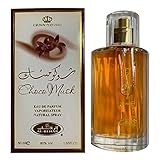
Choco Musk 50ml Eau De Parfum for men and women | Chocolate Musk by Jannat Aromas
17% Off
Christina Aguilera Signature Eau de Parfum (50ml) Floral, Fruity & Exotic Scent, Luxury Fragrance for Women
9% Off
Calvin Klein - Eau De Toilette CKIN2U - Calvin Klein Women, Ladies Perfume, Women's Perfume, Calvin Klein Perfume, Calvin Klein One - 150 ml
5% Off
Jimmy Choo Flash Eau de Parfum, 60 ml (Pack of 1)
3% Off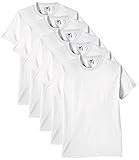
Fruit of the Loom Men's Heavy T Shirt, White, XL UK
28% Off
ATNKE LED Lighted Beanie Cap,USB Rechargeable Running Hat Ultra Bright 4 LED Waterproof Light Winter Warm Gifts for Men and Women/Pink
17% Off
Men's 1/4 Zip Pullover UK Sale Clearance, Fleece Sweatshirt Casual Jumper Long Sleeve T-shirt Top Stand Collar Sweater Plain Pullover Sports Leisure Workwear Quarter Zip Sweater Lightweight Jumpers
£5.88 (as of 12/11/2025 00:52 GMT +01:00 - More infoProduct prices and availability are accurate as of the date/time indicated and are subject to change. Any price and availability information displayed on [relevant Amazon Site(s), as applicable] at the time of purchase will apply to the purchase of this product.)
Crevice Cleaning Brush, Bathroom Tile Groove Gap Cleaning Brush,Premium Crevice Cleaning Tool Aluminum Support with 15° Angle Magic Brush, Thin Brush for Home Kitchen
19% Off
Wireless Earbuds, Bluetooth 5.3 Headphones in Ear with HiFi Stereo Deep Bass, 4 ENC Noise Cancelling Mic Wireless Earphones 40H Playtime, Bluetooth Earbuds Dual LED Display, IP7 Waterproof, USB-C
42% Off