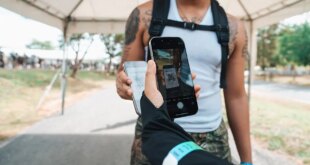
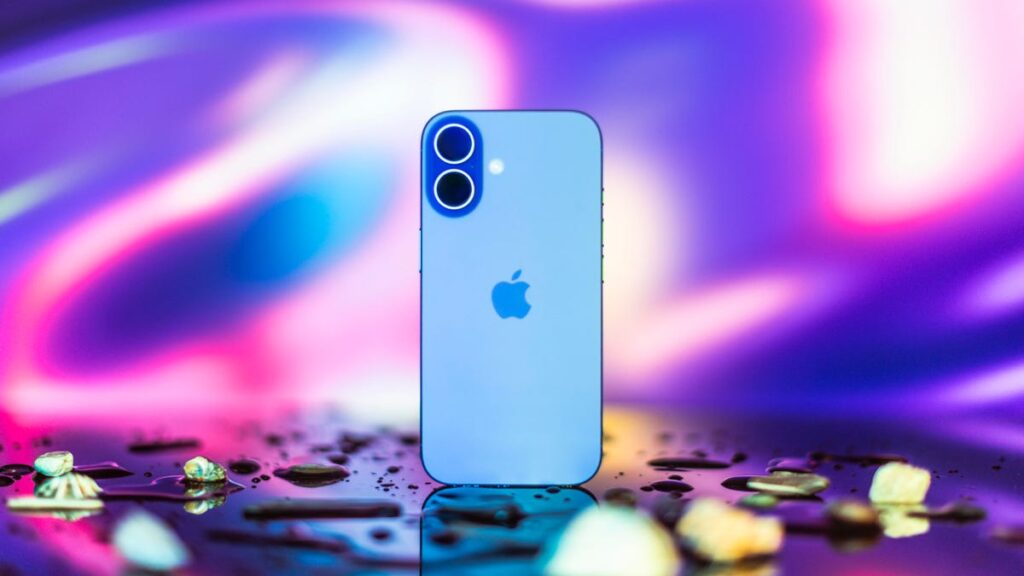

According to my iPhone, I spend more than 8 hours a day on my phone — yikes. I’m sure I hold my iPhone close to my face at times, especially at night, and that might be why my eyes feel uncomfortable sometimes, like I’ve got something in them. Luckily, there’s a hidden iPhone feature that could help me — and others — take better care of our eyes called Screen Distance.
Read more: Screen Time Matters When It Comes to Your Eye Health
The feature warns you when you’re holding your iPhone or iPad too close to your face, sort of like having a parent tell you to sit farther back from the television or computer screen. Although having a screen near your face might not harm your eyes, it could stress and irritate them, according to health care organization Cedars-Sinai. Thankfully, this iPhone feature aims to help reduce eyestrain. According to Apple, it could even lower the risk of myopia, or nearsightedness.
Here’s how to turn Screen Distance on and give your eyes a break.
Turn on Screen Distance
1. Open Settings.
2. Tap Screen Time.
3. Tap Screen Distance.
These screens appear the first time you access Screen Distance.
Then you’ll see two screens explaining what Screen Distance is and how it works. Tap Continue on both screens, and Screen Distance automatically turns on after these screens. Both screens appear only the first time you go into Screen Distance.
Now, after holding your iPhone too close to your face for a few minutes, your screen gets blocked by a message reading, “iPhone May Be Too Close.”
When you hold your iPhone too close to your face for too long, Screen Distance blocks your screen.
Your screen remains blocked until you hold your iPhone farther away. Then, your screen shows a checkmark, and you have to tap Continue to remove the block.
Read more: How to Beat Eyestrain, According to Optometrists
Turning off Screen Distance
Screen Distance is a useful iOS feature that may reduce eyestrain and even decrease the risk of nearsightedness. However, if you find the warnings more annoying than helpful, here’s how to turn Screen Distance off.
1. Open Settings.
2. Tap Screen Time.
3. Tap Screen Distance.
4. Tap the toggle next to Screen Distance.
Now you can go back to holding your iPhone as close to your face as you want without interruption from your phone — or your parents.
For more iOS news, here’s all the features included in iOS 18.5 and iOS 18.4. You can also check out our iOS 18 cheat sheet and what we hope to see in iOS 19.
Watch this: WWDC 25: Expect Big Changes to iOS, but Not Much on a Smarter Siri

Khamrah by Lattafa for Men - 3.4 oz EDP Spray
4% Off
Ghost Sweetheart Eau de Toilette | Pineapple, Jasmine and Sandalwood | Perfume for Women 50 ml
50% Off
Marc Jacobs Dot Eau De Parfum for Women, 100 ml
42% Off
Ted Baker W Eau de Toilette for Her, Fig Leaf, White Peony and Violet Top Notes, Pink Orchid and Raspberry Middle Notes, 75ml
£11.77 (£15.69 / 100 ml) (as of 20/10/2026 06:36 GMT +01:00 - More infoProduct prices and availability are accurate as of the date/time indicated and are subject to change. Any price and availability information displayed on [relevant Amazon Site(s), as applicable] at the time of purchase will apply to the purchase of this product.)
Ted Baker Woman Pink Eau de Toilette Spray Floral Green Feminine Fragrance, Opening Notes are Fresh Peach, Bergamot and Tangerine with Warm Musk, Vanilla and Vetiver Base, 100ml
11% Off
Vera Wang Princess Eau de Toilette - 30 ml
Choco Musk 50ml Eau De Parfum for men and women | Chocolate Musk by Jannat Aromas
17% Off
Christina Aguilera Signature Eau de Parfum (50ml) Floral, Fruity & Exotic Scent, Luxury Fragrance for Women
9% Off
Calvin Klein - Eau De Toilette CKIN2U - Calvin Klein Women, Ladies Perfume, Women's Perfume, Calvin Klein Perfume, Calvin Klein One - 150 ml
5% Off
Jimmy Choo Flash Eau de Parfum, 60 ml (Pack of 1)
3% Off
Fruit of the Loom Men's Heavy T Shirt, White, XL UK
28% Off
ATNKE LED Lighted Beanie Cap,USB Rechargeable Running Hat Ultra Bright 4 LED Waterproof Light Winter Warm Gifts for Men and Women/Pink
17% Off
Men's 1/4 Zip Pullover UK Sale Clearance, Fleece Sweatshirt Casual Jumper Long Sleeve T-shirt Top Stand Collar Sweater Plain Pullover Sports Leisure Workwear Quarter Zip Sweater Lightweight Jumpers
£5.88 (as of 12/11/2025 00:52 GMT +01:00 - More infoProduct prices and availability are accurate as of the date/time indicated and are subject to change. Any price and availability information displayed on [relevant Amazon Site(s), as applicable] at the time of purchase will apply to the purchase of this product.)
Crevice Cleaning Brush, Bathroom Tile Groove Gap Cleaning Brush,Premium Crevice Cleaning Tool Aluminum Support with 15° Angle Magic Brush, Thin Brush for Home Kitchen
19% Off
Wireless Earbuds, Bluetooth 5.3 Headphones in Ear with HiFi Stereo Deep Bass, 4 ENC Noise Cancelling Mic Wireless Earphones 40H Playtime, Bluetooth Earbuds Dual LED Display, IP7 Waterproof, USB-C
42% Off